We remain fully operational. Our teams are working around the clock to ensure your deliveries continue safely.

Descargar la aplicación


Servicios al cliente
Sobre nosotros
Copyright © 2025 Desertcart Holdings Limited
Descargar la aplicación




🖨️ Print Smarter, Not Harder — Network Your USB Printer Like a Pro!
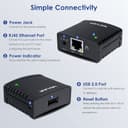
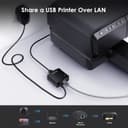
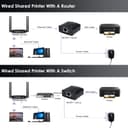
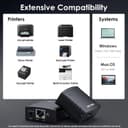
The WAVLINK USB 2.0 Network Print Server converts any USB printer into a network-shared device with 10/100Mbps Ethernet speed, supporting Windows and MacOS without requiring additional drivers. Ideal for home, business, or institutional use, it simplifies printing from multiple devices while saving space and costs.




| ASIN | B07BFC658Q |
| Best Sellers Rank | 34,081 in Computers & Accessories ( See Top 100 in Computers & Accessories ) 4 in Print Servers |
| Guaranteed software updates until | unknown |
| Item model number | NU78M41 |
| Manufacturer | WAVLINK |
| Product Dimensions | 21 x 14 x 5.5 cm; 295 g |
G**F
Ignore compatability list, install and see
My printer was not on the compatability list but it was installed and printing in minutes. Brilliant bit of kit👌
C**R
Doesn't work with Windows 10
Works well but not with Windows 10
A**Y
Works pretty well, but don't bother with the included software
Contrary to what I thought was going to happen and to what I read about the reliability of many similar devices, this one seems to work pretty nearly seamlessly. The included software, both on the CD and the latest version on the website seems to only be officially supported for Windows XP, Windows 7 and Windows 8.1. However, depending on the printer used and your network set up, you can bypass this entirely and install the printer manually using only your printers USB driver and Windows own network printer set up. This will vary depending on what versions of Windows your are using. I'm using Windows 10 in my case. But basically you go to the Start Menu, then Settings (Cog/Gear Wheel on the left), then Devices, then Printers & Scanners. Then select "Add a printer or scanner". The dots will appear to show Windows is looking for the printer but just wait for a bit and then select "The printer that I want isn't listed". The add printer screen should appear. Select "add a local printer with manual settings", then select Next, then "Create a new port" and select "Standard TCP/IP Port" from the list and select Next, then in the next screen type in the IP address for the print server itself. Tick the box at the bottom and click Next. At this point the Windows will say it is detecting the TCP/IP port, but struggle and then ask for "Additional port information". Select "Custom" at the bottom and then click the "Settings" button. Select "LPR" in the next screen and type in "lpr1" in the "Queue Name" box (I am not sure if this has any impact but this is what worked for me) and tick the box marked "LPR Byte Counting Enabled". At this point Windows will try to detect the appropriate printer driver. If it is already listed in the next screen, select that and then Next, otherwise, select the "Have Disk" button and use the Browse button to find your drivers on your computer. You may need to download them from the manufacturers website or have whatever media they are on to hand, then click OK and Next. At this point, all going well, the printer should be installed and you will get the option to print a test page. Make sure the printer itself is switched on. This was something I keep forgetting to do as I don't always leave it powered on. Confirm the printer is working by printing some actual documents as well and it should all be working at this point. I don't know about the longevity or future support of this device but so far it seems to be working relatively smoothly. The only down side is that there doesn't seem to be a facility to power it from the USB port you find on some models of home router or have PoE ability but I guess that is for more advanced enterprise grade devices.
M**S
Didn’t work.
Easy installation, but as soon as I try to read a connected device, get blue screen failure. Simply doesn’t work. Reinstalled printer, after install device, still fails. Printer works fine, without device.
R**.
Good Ethernet connection…..better than the Wavlink WiFi option
So far so good, very happy with this….bought 2, 1 each for different printers. Would recommend you switch this on and leave for a minute before switching on your device……there seems to be a bit of a ‘lag’ in the connection. Now I’ve found this out….all works as hoped.
M**N
Works fine, just needs some basic tech skills
Straight forward to setup with a bit of tech skills, as per other reviews, find the IP address on your router or from command prompt via the "arp -a" command. add as a new printer, manually configure the TCP/IP port to use LPR with a queue name of lp1 - manaully find and add your printer, job done. (The inlcuded instructions state this) We're using it with a Zebra ZD220 label printer with no issues. My only mistake was updating the existing printer to use the IP port rather than just adding it as a complete new device.
J**N
Limited Mac compatibility.
Considering the description stated Bonjour Print services and lots of compatibility with printers etc, it requires an installer to configure some printers correctly (including my Epson L382), which is only Windows compatible.
J**N
Excellent
excellent
A**I
presa UK scrivetelo nella descrizione!!!!
F**O
non ottimale per epson epl-5900l
Trustpilot
Hace 1 semana
Hace 2 días