🖨️ Print smart, work smarter—join the productivity pros!
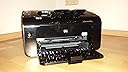
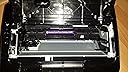
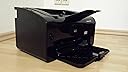
The HP LaserJet Pro P1102w is a professionally refurbished wireless black & white laser printer delivering fast 18 ppm print speeds and sharp 1200 dpi resolution. Featuring automatic duplex printing and USB 2.0 connectivity, it’s optimized for office and business document needs. Each unit is thoroughly tested, cleaned, and comes with a 90-day warranty, making it a reliable, eco-friendly choice for the modern professional.
| ASIN | B003ANMPTI |
| Additional Printer Functions | Print Only |
| B&W Pages per Minute | 18 ppm |
| Brand | HP |
| Built-In Media | Power cable, Network cable |
| Color | Black |
| Compatible Cartridge | Arthur Imaging compatible HP LaserJet Pro P1102W Toner Cartridges |
| Compatible Devices | Laptops |
| Connectivity Technology | Wireless |
| Control Method | Remote |
| Customer Reviews | 4.1 out of 5 stars 273 Reviews |
| Dual-sided printing | Yes |
| Duplex | Automatic |
| Global Trade Identification Number | 08844207094118 |
| Hardware Interface | USB 2.0 |
| Ink Color | black |
| Item Weight | 11.7 Pounds |
| Manufacturer | HP |
| Maximum Copies Per Run | 150 |
| Maximum Copy Resolution Black and White | 1200 dpi |
| Maximum Copy Speed Black and White | 18 ppm |
| Maximum Media Size | A4 |
| Maximum Print Resolution Black and White | 1200 x 1200 |
| Maximum Sheet Capacity | 150 |
| Model Name | Laserjet Pro P1102w |
| Model Number | CE658A#B19 |
| Model Series | P1102 |
| Number of Drivers | 2 |
| Number of Trays | 1 |
| Other Special Features of the Product | Wireless |
| Output sheet capacity | 150 |
| Paper Size | 8.5 inches |
| Power Consumption | 370 Watts |
| Print media | Card stock, Envelopes, Paper (plain) |
| Printer Connectivity Type | Wireless |
| Printer Output Type | 150 |
| Printer Type | Monochrome |
| Printing Technology | Monochrome |
| Processor Count | 1 |
| Resolution | 1200 x 1200 |
| Series Number | 657 |
| Special Feature | Wireless |
| Specific Uses For Product | Office/Business Document Printing |
| Total USB 2.0 Ports | 1 |
| Total Usb Ports | 1 |
| UPC | 886111917150 884962408049 884420709411 |
| Warranty Type | limited warranty |
| Wattage | 370 watts |
J**E
Printer isn't printing "the printer is offline"
I connected the printer with the cable that the vendor provided and when i send a file to be printed this is what I get "printer is offline"
T**E
Why are we not allowed to return?
This is not a new unit, it didn't come in a box and it has a 2015 manufacturer date. It is covered in dust and does not function at all! When I got it hooked up it screamed and made some loud chattering noise. It is definitely well used.
S**I
Broken Pirces
This item came in total shattered pieces. The cable is missing. I bought a cable, but it doesn't work at all.
S**R
Does not work with Win 11. HP does not support
From the HP community: This is not a question, but sharing my experience. While the official HP position is that LaserJet P1102W is not supported on Windows 11, I have installed and re-installed it and it works very well. There are many wrong ways to do it, that work only partially. Some users might be satisfied with that; I was not. For example, one can download the drivers from the HP website and use Windows built-in printer install. This creates a weird port, and may get the printer working but won't recognize that it can print double-sided. In other words, it doesn't know how to interrogate the printer. Then one might think that, surely, HP's Smart Printer Install should do the job well since it is their printer. Yes, but Windows 11 is not their OS! It seems to use the same install process as is built into Windows, and furthermore gives the printer a strange name consisting of letters and numbers, followed by the correct name in parentheses. It, too, doesn't recognize that the device can print double-sided. But, using the most old-fashioned way possible, I have succeeded every time. First, uninstall any previous installations so you start with a clean slate. Connect the wireless printer to the Windows PC with a USB cable. Go to the folder downloaded from the HP website containing the driver files for this printer. Double-click HPSetup.exe. Answer the questions that you want to use the printer on WiFi. If it was installed in the past, you can select the option that asks if the printer (its IP address) is recognized by the WiFi network. That's it. It will be recognized with all its capabilities, and it will work properly with a prompt window that pops up for manual duplexing.
I**E
NOT USEFUL
NOT USEFUL
M**O
hp laser printer
i buy this almost one month before, and all i can say is this hp is the best printer i ever have. One thinks i like very much to this printer is double side print feature. Is not hard to do it, and u can print on the both sides of the paper, and this save me a lot of money. Another think this printer is good to use with good paper, like xerox or original hp, u can have the printer with the introductory cartridge and u can refill, i was in the shop, and they can refill the introductory cartridge with 12 pounds. I think 12 pounds for 700 pages is not a bad price, this in case u want cheap ink. U can buy original ink as well for 45 pounds on misco, and i think is good price, u pay 45 pounds and u can print 1600 pages. Another think i like to this printer is wireless conection, i read another people rewiews and they say is hard to conect on wirelless network. Only think u need to do is to install on cd and choose wireless network setup. After u install hp software, all u need to do is go in the start menu go to conect to, and go to wireless network. U will see there the network printer, in my case is hp and some numbers. U click select ant u click conect after. Once u are connected all became easy, u don t need usb cable at all, u can stay meters away for the printer and u can do nice job. Speed is amazing if u compare with the crap inkjets, i have before one inkjet and it was rubbish slow and all the time paper jam, this is good, u want to print u conect and job is done, no paper jam and another crap.Print quality is good, u can select eco mode as well and save ink, but me i never use it because i use refill cartridge, and it worth it, to finish this, i am verrrrrrrrrrrrrrrrrrrrrrrry happy with this printer and i would recomended to all my friends, even if is not very cheap, u don t but every day printers so if u want a good one spent a little bit more and u are trouble freee.
I**O
So einfach soll die Installation sein
Nachdem mein 17 Jahre alter Laserjet 4L nun seinen Geist aufgegeben hatte wollte ich einen neuen einfachen Laserdrucker haben. Voraussetzung war noch Unterstützung für Wireless Drucken, da neben dem fest installierten PC noch das ein oder andere Notebook nun zu unserem Haushalt gehören. Wollte bei HP bleiben, da ich parallel noch einen Laser Farb-Multifunktionsdrucker (Drucken, Scannen, Kopieren) eines anderen Herstellers habe und mit diesem nicht ganz so zufrieden bin, da er Probleme mit dem schwarzen Lasertoner hat. Vielleicht wichtiger Hinweis: Drucke ab und zu mal einen Brief, bin sicherlich kein Vieldrucker... Daher bei Amazon den Laserjet P1102w bestellt. Günstigster Preis Amazon direkt aber Lieferzeit 2-3 Wochen, nächst günstigster Anbieter mit Lieferung 3-5 Werktage war 20€ teurer. Da ich keine Eile hatte habe ich den LaserJet direkt bei Amazon bestellt. Einen Tag später erfreuliche Mitteilung, dass der Drucker bereits in einer Woche geliefert werden kann, nur drei Stunden später die Mitteilung, dass der Drucker sofort verfügbar sei und geliefert werden könne. Einen Tag später war er da. Lieferzeit also zwei Tage. Geliefert wird der LaserJet im Originalkarton, alles komplett inkl. USB-Kabel (1m). Wer also neugierige Nachbarn hat sollte bei der Lieferung zu Hause sein. Habe den LaserJet ausgepackt, Transportverpackung entfernt und aufgestellt. Die Bedienungsanleitung für die Inbetriebnahme mit vielen Piktogrammen und Kurzbeschreibung in gefühlt 20-30 Sprachen war für mich nicht sofort verständlich - Habe dann mehr aus Intuition aufgebaut, d.h. Strom dran, USB Kabel angeschlossen. Laut Beschreibung sollte dann die Installation des Treibers sofort starten. Ging bei mir nicht. Die Bedienungsanleitung gibt aber nach einigem Blättern den Hinweis, dass der Drucker wie ein USB Stick im Explorer sichtbar ist (andere Betriebssysteme habe ich nicht getestet) und von dort das Installationsprogramm startbar ist. Funktioniert auch, dann Wireless-Installation gewählt. Der 1102w hat einen recht guten Printserver mit weiteren Konfigurationsmöglichkeiten. Einmal eingerichtet können weitere PCs über einen Webbrowser und der IP-Adresse des Druckers einfach mit dem Drucker verbunden werden. Notwendige Treiber werden vom Drucker bequem heruntergeladen (über HP Smart Install). Diese Einfachheit der Installation hat mich überzeugt. Das macht Spass. 5 Sterne ohne wenn und aber. Druckgeschwindigkeit für diese Preisklasse sehr schnell, Druckbild OK (für Briefe, Texte etc.). Um Fotos qualitativ hochwertig auszudrucken gehe ich in den Drogeriemarkt... Fazit: Durchaus geeignet für einen Privatanwender, der evtl. mehrere PCs oder Notebooks sein Eigen nennt. Ansonsten tuts auch ein klassischer lokaler USB Drucker (ggf. mit Netzwerkfreigabe). + USB Kabel übrig + einfache Installation + schneller Druck, schneller Wake Up aus Standby (OK - schnelles Aufwachen nachdem der Drucker im Bereitschaftsmodus war) + relativ kleine Stellfläche + leise (im Vergleich zu einem 4L) + gutes Druckbild 0 diese Bedienungsanleitungen, die für alle Länder der Welt gehen, bringen mich um... - noch nichts negatives gefunden
C**S
Works OK + Mac installation tips
It was with some degree of trepidation that I bought this printer as I am a Mac user (newbie) and having read previous reviews knew I could be in for a challenge. In the end, probably took about 1.5 hours to set up but I can now print wirelessly from my iMac and my iPad 2, the latter being the main reason for purchase. I have had the printer a week and generally it seems to print on demand without problems. Once the Mac couldn't find the printer, but a re-boot of both solved the problem (without having to re-enter any setup information). To save other people having to spend quite so long on the initial install I have listed the steps I followed below - there's probably a quicker route, but this worked for me. Firstly, download latest updates for Mac. Connect printer to Mac via USB and turn on. Install Drivers and Firmware update on CD supplied. That got me to printing via USB. Now the wireless bit. The text below is taken from page 20 of the user guide LJP1100_use_enww in the documentation folder on the CD with my comments in [ ] Install software for Mac computers on a wireless network Before installing the product software, make sure the product is not connected to the network using a network cable. NOTE: You must have Mac OS X V10.6 to install the product on a wireless network. [I'm using Mac OS X 10.7.3 - found under the apple icon, top left `about this Mac'] To connect the product to a computer on a wireless network, follow these steps: 1. Open Finder in the dashboard. 2. Click Applications, and then double-click System Preferences, and then click Print & Fax. [Print & Scan on my Mac] 3. [select the LaserJet P1102w] Open Print Queue, click Printer Setup, click the Utility tab, and then click Open Printer Utility. 4. Click HTMLConfig. [browser will open] 5. Click the Networking tab, and then click Wireless in the list on the left. 6. Under Communication Mode, click Infrastructure, select a network name from the Available Network Names (SSID) list, and then click the << button. [you may need to click refresh to see the network you want, click to select it and don't forget to click the << button to move it across] 7. From the Security Mode pop-up menu under Authentication, click WEP. [I was using a SKY wireless router and had to change mine to WPS/WPA2 not WEP] 8. Type the WEP key and then click Apply. [or, as in my case type in your pass-phrase and click apply] 9. Click OK in the confirmation box. 10. Close the HTML Config windows and the Print Queue window. 11. In the Print & Fax window, choose the USB option (listed with the product model) and then click the minus - button. [I could not find this at all. Maybe me being blind but meant I couldn't complete this step or step 12 below - I've left them in for completeness.] 12. When the window with the list of printers appears, choose the Bonjour option (listed with the product model), and then click Add. [13. I disconnected my USB cable. Then I opened up Mail (although any application will probably work) selected an email and clicked File > Print. Attempted to print on the LaserJet P1102w but it was disconnected - obviously looking for the USB connection that I'd removed. So I clicked on Printer > Add Printer. From the dialogue box I selected the LaserJet P1102w (kind: Bonjour) and clicked add. This gave me a second version of LaserJet P1102w-2. Clicked on Print and it worked. I then went back into Print & Scan and set the second version of the LaserJet as the default printer. Probably not the cleanest approach, but it allows me to print wirelessly from my iMac. I was able to print wirelessly from my iPad2 as soon as I had completed step 10 (which is the main reason I purchased this printer]. I also have a PC running windows 7. For this I followed the installation disc instructions. Worked OK, but I had to tell the PC the IP address of the printer as it couldn't detect it automatically. Then worked fine.
T**O
smarter Homeoffice Drucker
Ich suchte einen kleinen S/W Drucker für mein Home-Office und wurde durch die anderen Rezensionen für diesen Drucken begeistert,es wurde nicht zu viel versprochen. Install und Aufstellung: einfacher geht es nicht, anstecken, Setup laufen lassen (USB-Kabel für Install liegt bei) und dann betriebsbereit, platzsparend im Regel einzustellen Funktion: er druckt und druckt, ja der Geräuschpegel ist dann etwas lauter, ist aber erträglich, denn ich drucke ja nicht über Stunden, im Ruhezustand ist der Drucken nicht zu hören, die Standby-Funktion regele ich über einen Hauptschalter in der Steckerleiste, aus ist dann auch wirklich aus; die fehlende Blattabdeckung läßt etwas Staub auf dem ersten Blatt ansammeln, also das erste Blatt vorher austauschen, wenn der Drucker länger nicht benutzt wird Druckbild: scharfe Ränder, eco-Modus (weniger Tonerverbrauch) einstellbar, ich verwende Normalpapier mit 80g/m³, Laser-Copy-paper, die Seiten erhalten zwei kleine Andrucklinien von der Druckwalze auf der Rückseite, ist m.E. für den Heimgebrauch voll vertretbar, da nicht störend; wenn das Druckblatt etwas liegt, legen sich die Andrucklinien etwas aus, ich kann sie jetzt nur noch gegen das Licht feststellen, für höhere Qualitätsanforderungen sollte dann ein anderer Drucker gewählt werden Toner: ja die Unart von HP, den ersten Toner nicht voll zu befüllen durfte ich heute schon feststellen, naja dann eben eine Ersatzpatrone gleich mitbestellen, im Original ca. 58 EUR, als rebuild ca. 29 EUR bei ca. 1.600 Blatt Reichweite denke ich noch im grünen Bereich, es werden auch Max-Toner mit 5.000 Blatt Reichweite für 58 EUR angeboten, bei rebuild wäre zu bedenken, dass manchmal ein HP Drucker - aber auch nicht nur dieser - das rebuild nicht erkennen will, HP will eben seine Toner verkaufen, ich denke, über das Thema Toner läßt sich endlos referieren WLAN: von meinem Arbeitsplatz (Laptop) kein Problem, vom weiteren Arbeitsplatz hab ich noch nicht getestet Fazit: Preis Leistung sind m.E. ausgewogen, für den Heimarbeitsplatz zu empfehlen
M**E
Grande stampate a un piccolo prezzo
Ideale per stampare documenti in bianco e nero. discreta velocità di stampa, modulo wifi conpreso e compatibilità con airprint per tutti i dispositivi iOS (ipad, iphone...) vivamente consigliata
Trustpilot
1 week ago
1 month ago