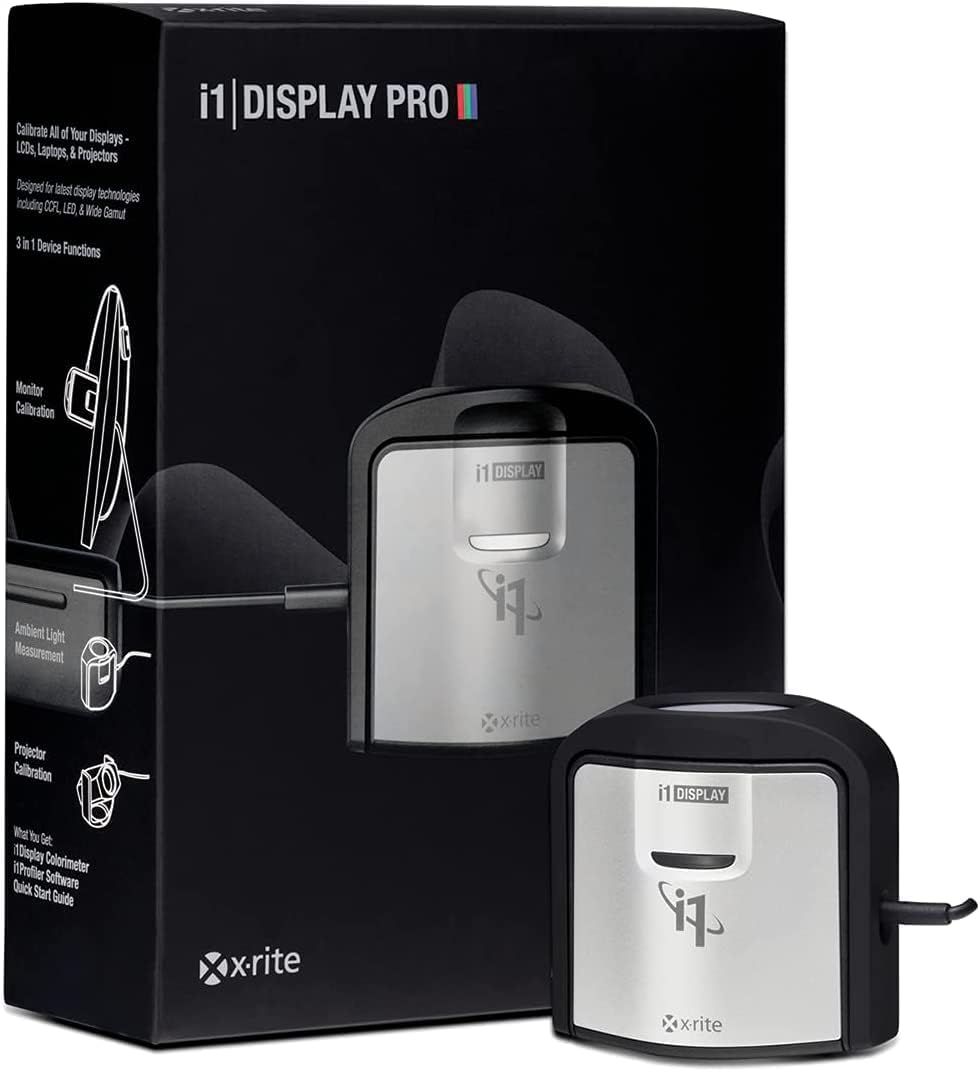



🎯 Nail perfect color every time — because your visuals deserve nothing less.
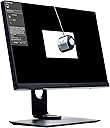
The X-Rite i1Display Pro is a compact, professional-grade color calibrator designed for photographers, designers, and filmmakers who demand the highest color accuracy. Combining ambient light measurement, monitor and projector profiling, it delivers 5X faster readings with exclusive X-Rite technology. Compatible with mobile devices via the ColorTRUE app, it supports all modern display types and is future-proof with field-upgradeable spectral calibration. Its advanced software offers both basic and expert modes, ensuring precise, uniform, and consistent color calibration across all your digital screens.


| ASIN | B0055MBQOW |
| Best Sellers Rank | #66 in Photographic Light Meter Color Calibration Charts #6,052 in Computer Monitor Accessories |
| Brand | X-Rite |
| Color | Black |
| Customer Reviews | 4.4 out of 5 stars 2,121 Reviews |
| Display Dimensions | 2 x 3 in |
| Global Trade Identification Number | 07640111922469 |
| Item Dimensions W x H | 2"W x 3"H |
| Item Type Name | X-rite i1display pro. |
| Item Weight | 0.55 Pounds |
| Manufacturer | X-Rite |
| Mfr Part Number | EODIS3 |
| Model Number | EODIS3 |
| Mounting Type | Table Mount |
| Operation Mode | Automatic |
| Product Dimensions | 2"W x 3"H |
| Screen Dimensions | 2 x 3 in |
| Screen Finish | Matte |
| Screen Surface Description | Matte |
| UPC | 044112925493 848826026459 778889486184 072858937364 071020050887 093007669264 |
| Unit Count | 1.0 Count |
| Warranty Description | Calibrite – 12‑month warranty against defects in materials or workmanship (registration required within 30 days). Authorized U.S. and local-market purchases only. |
A**R
Fantastic Results, Powerful (but Complicated) Software
This is a comparison of the Datacolor Spyder4 Elite and the X-Rite i1Display Pro, both of which I had here at the same time. First, let's compare the physical devices themselves. The Spyder4 device is purposely designed to look like a "spider" (if spiders had 3 legs) to stay in line with the marketing of the name brand. It's a very large device. It's hung from its own USB cable from the top of the monitor, with a counterweight in the back to keep the device in place. It's very large, which can make it difficult to use on the lower sections of the screen during screen uniformity tests. I have a large-ish 27" monitor, and I had to hold the spider in place at a 90 degree angle with my hands during those parts of screen testing. In addition, the position of the cable on the device means that if you have a screen that sits deep in its bezel, it's physically impossible for the Spyder4 to sit flat against the screen on its own unless you can tilt the monitor way back. Even on my screen with relatively shallow bezels, and with a stand that can tilt back 20 degrees, it was often difficult to get it sitting flat on the screen. This can get frustrating. On the other hand, the i1Display Pro is a very small device that can easily fit anywhere on your screen. The setup is mostly the same, where you hang the device from its USB cable over the top of your display, with a counterweight to hold it in place. In this case, the cable is positioned so that it contributes towards holding the device flat against the screen, no matter how deep your panel sits compared to the bezels. I never had any trouble getting it to sit flat against my screen, I didn't even need to resort to tilting the screen. And it sat comfortably flat on its own anywhere on the screen, even at the extreme bottom corners where the Spyder4 could not reach. There are really 2 main performance criteria to consider with these devices: speed and accuracy. I used these devices with their respective software packages, so I'm not sure if they'd work differently in a single profiling software package that supports both of them. However the differences I observed within their own environments were very noticeable. First and foremost, the Spyder4 was clunky and slow, while the i1Display Pro was lightning fast and intuitive. For example, while setting brightness and contrast early on in the profiling process, the Spyder4 would take a reading, ask me to make changes, then wait for me to click the "Update" button to take another reading and update the results. This is slow, tedious and error prone. Meanwhile, the i1Profiler software gave me a constant readout of the screen brightness as I made changes, with results displaying immediately. Also, during the profiling process, the Spyder4 Elite software frequently paused to wait unnecessarily for my input. For example, after setting the brightness properly, there was another button to proceed with profiling. And when it was done profiling, there was another button to "Finish". And these buttons show up half-hidden under the Spyder4 device itself, with no obvious screen prompts to let you know they're there. So if you're away from your desk and just glancing at the screen once in a while, you might not realize that the profiling process is waiting for your input. It's a very frustrating design. On the other hand, the i1Profiler software had no such issues. When there were prompts, they were few and far between, and clearly noticeable from anywhere in the room. Most of the process was very automated. The ability of the software to adjust most monitors automatically makes the process even more quick and straightforward. Patch color reading with the Spyder4 is painfully slow. A patch is displayed, the Spyder4 flashes briefly, then there's an interminable moment before the next patch comes up and the process repeats again. With the i1Display Pro, patch color reading is blazing fast. You can see color patches flying through the display faster than they can be identified by eye. The reading speed for each patch can vary, so I assume the software is waiting for the color to stabilize before accepting the reading from the device. This gives me confidence that the software is performing its job as fast as it can while still being accurate. The end result with the Spyder 4 was disappointing. I always ended up with a magenta cast on my Dell U2317H. This was true with the monitor in both sRGB and wide-gamut modes. On my super-old Asus V242H, I ended up with a blue cast (this is an sRGB CCFL LCD monitor). The i1Display Pro is directly supported by my Dell monitor for hardware calibrating, and results were superb. I was able to add a flawless sRGB preset and a full-gamut preset that covered 99.5% AdobeRGB (plus much, much more beyond). Colors are neutral, whites are white, and shadows are crisp and detailed while still reaching pitch black levels. These settings are stored right in my monitor's LUT, so they're not dependent on a software LUT modification in the video card. I also used the i1Display Pro to calibrate my Asus monitor using software calibration. Results were again superb. My Asus perfectly matches the Dell when I have the latter set to my custom sRGB mode. As far as software features go, I found the Spyder4 Elite software to be kludgy and clunky. It's mostly geared for consumers, with most of the advanced stuff hidden away. Even then, the advanced stuff isn't very configurable. The different package levels of Spyder4 (Basic, Pro, Elite) don't actually have anything to do with the device. They all come with the exact same device. It's just that certain software features are arbitrarily removed from the software as you go down in tiers. This makes the varying cost of each level kinda suspect. I'm pretty sure they're not making a loss on the Basic version, so they must be more than doubling their profits on the Elite version in comparison. It's not like they developed 3 different versions of the software for each level. They just developed the main one, then hacked away at the good stuff for the other levels. In contrast, the i1Profiler software is incredibly advanced and can do just about anything... but getting it to perform anything beyond the built-in generic tasks is very difficult. You can build your own workflows from scratch, but this tales knowledge and experience and a lot of manual work. Once the workflow is created and saved, you can run it anytime with just a couple of clicks. There are no different levels of this software, no "Pro" vs "Basic". However there are certain features in the software which are enabled/disabled depending on which device you have plugged in. For the i1Display Pro, only the monitor and projector modules are active. You need different devices to calibrate a scanner or printer, etc, all of which gets done in this exact same software. I ended up returning the Spyder4. Results were disappointing, and after I got to try the i1Display Pro, the Spyder4 just paled in comparison. It's like comparing a point-and-shoot camera (Spyder4) with a full-featured DSLR (i1Display Pro).
N**E
Easy and Quick To Use
It is August of 2013 and I'm still using a mid-2010 27" iMac. It has 8GB of RAM, and an ATI Radeon HD 5750 with 1024 MB of memory. The software is the most current Mac OSX at 10.8.4. I received the i1 Display Pro today, carefully installed the software. The software immediately updated itself to a much newer version it went from 1.1.1 to 1.5.0 which is dated July 2013. I had no problem with the install, update or registration. Make sure you first install the software, then connect the device, then register it while manually selecting the correct device in the radio buttons. Now you are ready to go. The start manual is lean, but there is an extensive help system and tips for each step of the process. At the bottom left hand corner of the software home screen is a link to some video tutorials. They are helpful and worth using if this is your first device to calibrate your monitor. (It was my first.) I had recently spent time manually calibrating the monitor and thought I had done well. The process with the calibrating tool changed my calibration and showed aspects of it to be far off. With the new calibration I'm printing from photoshop with excellent results. I expect to see significant changes in how I prepare my images. So now I have an easy to use, accurate set up with a lot of options for my monitor and for my Cinema display and any other monitor I could conceivably end up with. If only the cost of the device covered printer calibration.... The device for that costs over $1500. Well, I expect to have pretty good results as it is without the additional expenditure! In summary: -Software worked and installed smoothly on my old iMac with current OSX. -It updated to a recent current version. -Registration was online and very quick. -Software had no issues, no bugs, no memory leaks, no problems, and was easy to use. -My iMac and soon my other systems will be well calibrated. -It does all you want it to do and more. (Well a free printer calibration would be nice, but it isn't that kind of device!) - I gave it 5 stars for all of the above reasons - no problems, works as described, accurate, easy.
P**Y
Solid color calibration but not the most user friendly
I have both a Datacolor Spyder4Elite and an X-Rite i1Display Pro. Both give good results on my Dell U3011 30" Wide-Gamut monitor. The X-Rite unit is much faster, allowing it to create a more complete color correction table in a shorter time. I've found the color correction with the X-Rite to be somewhat better that the Datacolor, but not by so much that it is significant in most cases. I actually use 3 monitors (mostly because I had them). One is the Dell, one is an old Samsung CCFL LCD panel and one is a 2008 (or 2009?) Samsung LED LCD panel. Interestingly, the older CCFL panel has better color than the LED panel, but the LED panel is brighter. The Dell is the monitor I use for all critical work. No color calibration will make these three monitors match, because they are simply to different in technology and their weak colors are different. The best you can do is get the narrow gamut colors the same. Comparing the color correction with both units, they give very similar optimized results when the software is setup similarly. I like the Spyder software better that the X-Rite software, but both work well. The Spyder software is more intuitive and steps you through the calibration process better. It allows easy options for calibrating multiple monitors, although even with the best possible calibration, you'll see differences between different monitor types. The Spyder software provides for an iterative (but slow) grey balance at different luminosities. The X-Rite software does not do this, but allows you to set up your own color patches for correction points, and gives some more options on the type of color profiling to be done. You can make a very complete table of color corrections, which with the speed of the X-Rite unit is practical whereas it would be painfully slow to do fine gradations of correction points with the Spyder unit. With the X-Rite unit, you can also choose several custom color patches to set up calibration points based on Pantone colors or based on colors from your own photographs. Both software packages install a timer that monitors when you last calibrated your display and reminds you to redo the calibration at an interval you set. The both write a color profile that works in the windows color system, and automatically loads that profile as your default. The Spyder version allows you to turn that profile on and off easily, but I'm not sure why you would want to. I feel the X-Rite unit and software has the advantage in measuring and writing the profile, but the Spyder software is better at analyzing the performance of the monitor. I use the X-Rite pretty much exclusively now because of speed.
B**O
i1 display pro, Rocks if you own a Mac.
I owned i1 display 2 and because Xrite will not support Mac OSX 10.8 for that model I bought the i1display Pro. their website says they support 10.8. This does not connect with real life. The software does the same thing that the i1 display 2 software does, it crashes. So after forking out another $249 to calibrate my monitor I'm in the same boat that I was in before buying this product.Until Xrite can get their s*** together, avoid this product like the plague. This is an addendum to my original review. Many of my issues were because I had migrated my account from my G5 to my new intel Mac. The issues I encountered did not show up until The OS was upgraded to 10.8 Mountain Lion. The problems I incurred were due to unneeded crap from the Power PC days. I also had problems with Adobe Creative Suite CS6 and Microsoft Office crashing on that system. Two days ago I got a second Mac it came with 10.8.1 installed so before migrating my account over I installed all of my problem software Adobe CS6, Microsoft Office 2011, and the Xrite software. On a fresh system all of this software works like a charm. The iDisplay Pro works wonderfully. The newer calibrator works much better than the iDisplay and allows a better job of calibration on both my Thunderbolt display and my old Cinema HD display. Now that I have solved my problems I am very pleased with my purchase and would recommend this product. I apologize for my original review. I was frustrated by software not working and after spending so much money on everything I was a little upset. After making sure everything worked I migrated my old account from the first Intel Mac to the new one. I did not migrate my Applications just the rest of the account. All the software I had problems with still works and that makes me very pleased. I hope this helps someone. Again this really is a great product. One more update. I'm using Mavericks OS X now and i1 display pro works like a charm.
S**S
Excellent hardware, mediocre software - but works with other Open Source SW
Preface: I'm not a professional and not even an amateur photographer, just a display enthusiast who can't stand inaccurate greys, crushed dark details, washed out midtones, color tints, etc. Others have already discussed the high quality of the i1D3's hardware, as well as the disappointing software (one example: makes blacks brownish on lower end displays with mediocre sRGB coverage). So I just want to make sure everyone knows that it works with DispCalGUI (using Argyll CMS) - this is free & open source software - and produces great calibration results with it (also gets better black levels than i1 Profiler). The i1D3 also works with HCFR, which I use to measure the before & after in detail (gamma curves, primary & secondary color accuracy, saturation sweep, grayscale, color temperature, etc) which apparently the included i1 Profiler software can't do properly (or I haven't figured it out), it just gives a very basic report. Of course, amateurs & professionals probably already know that it also works with higher quality paid software like SpectraCal CalMAN but I didn't want to have to spend another $100. Some of my displays which I have calibrated and have achieved pleasing results considering what they were before: - Asus VG236H (TN, 98% sRGB coverage) - I'm assuming these are as good as things get with a good TN: color dE R5.8 G2.8 B3.1 Y4.2 C2.1 M4.3, gamma 2.2 perfect, grays dE average 4.0 (with >20% at under 2.0), etc. The "before" measurements were: grays average dE was 18.4 (WTF!), color dE R8.1 G2.9 B17.3 Y2.0 C25.8 M23.3 (again, big WTF) - Dell Studio 15 (2008 laptop, around 85% sRGB IIRC) - cheap laptop TN, but still: calibration resulted in HUGE improvement: no more blue tint, big gamma correction, grays quite neutral, etc. Contrast reduced only slightly - Samsung Series 9 laptop: PLS (IPS) screen with 66% sRGB (disappointing) - even with the limited color space, at least color temperature and gamma and greys and so on were nicely corrected so it is still a pretty big improvement. So obviously none of these results are good for even amateur photo editing (the Asus might just be ok if it wasn't for bad TN viewing angles) but they are fantastic for my enjoyment of all of these devices (web browsing, watching video, documents, etc. - typical consumer). Unfortunately, ICC Profiles are largely ignored by games which makes me very angry but what can I do? Not recommended for gamers - buy a screen with good factory calibration. Otherwise, completely worth the $250 I paid for it - I see it's flirting with $210 now.
J**R
Makes a Real Improvement
I've used this device and the included software on the set of computers (monitors) I own and on those owned by a number of family members and friends. It makes a real improvement in the output of the display. I use black backgrounds with my displays. The first thing I noticed when I calibrated them was that the blacks were much blacker. The whole display also just looks better. The colors seem "right." (a subjective statement I know) I also find my monitors are set to not be as bright which helps a lot in reducing eye strain. I use three Dell 24-inch monitors at my main workstation. The Display Pro calibrated them perfectly such that they all match and look great. The software is quite easy to use. There are choices for calibration which trade time against precision. Even then the most complete calibration takes only about 10 minutes. The calibration is directly loaded into Windows with a mouse click and then takes effect. No further user intervention is required. I use the device and software on a PC. The software also claims to run on Mac's. I assume it does since it works so well on a PC but I have no direct experience using it on a Mac.
P**.
Poor MacBook Pro Support, Works Well With Other Macs and Windows
Purchased this Colorimeter (not to be confused with a Spectrometer or Spectrophotometer, which are more advanced beasts of a similar kind) to color-match the screens of my various devices when editing my raw photos and videos. This hardware is considered to be the best, and for the premium that's expected. However, it misses the mark by far, because it's handicapped by software. For the past few days, I've literally calibrated my monitors more than 30 times. The software allows you to customize the number of test swatches being used to calibrate the monitor, to increase the color accuracy, and I used the largest set (462 colors) for all but the first three calibration attempts. Let me say first, in some cases there's a problem with installing X-Rite's i1Profiler calibration software on Windows 10 machines. Some configurations will result in a missing DLL file that prevents the program from loading at all. -- After many hours of troubleshooting I was able to finally get the missing DLL into the system. To do so, I had to install the latest version of their i1Profiler software, then install the 3+ year old version of their X-Rite Device Services software (v2.4.0, released: 10/7/2015). I do not recommend doing that. Although it worked, there are potential problems with using a system software that was created before the operating system was refined / secured. If you intend on calibrating your monitors and uninstalling it after, then it might be okay to use that method to get it to work. Keep in mind that the older version of the system software will be missing features and refinement / optimizations of the newer version, so your milage may vary. -- Once the program was able to load, it worked very well in Windows. I was able to get the three monitor gaming setup of the Windows machine to display with consistent results across all of them. There was a very slight, almost imperceivable difference, that my friend and I noticed while making an image wide enough that it covered all three 27" inch screens ... but we chalked that up to the fact that the monitors aren't the same age. Two were purchased at the same time, but two years after the first one, and all three are at least 4 years old. All things considered, the results were pretty impressive. Under MacOS it's a different story. Specifically the TouchBar MacBook Pro, which I wasn't able to get anywhere near the three PC monitors. I researched it extensively, intimately learning much more about monitor calibration. Going further and further down the rabbit hole as my calibration methods became more complex. I followed X-Rite's recommended "Linear Profile" MacOS approach, because unfortunately it's a well-documented problem (so they are very much aware of it, yet still haven't fixed the issue hence "unfortunately"). I tried calibrating for different monitor technologies, no dice. The picture ended up being significantly more orange than the Windows displays. It's telling, when the company that makes the product has a page titled "Technology Type For Apple Displays" which says, "The next update to i1Profiler will add a new Technology Type for 2016 and later MacBook Pros so current i1Display Pro users should stay with the 'White LED' Technology Type." Ummm, it's now 2019. 3 years have passed and they still haven't added the correct display technology, and still ask users to use a generic monitor technology. That is unacceptable for a piece of hardware at this price-level. It speaks volumes for their customer support, and the customer complaints in their Amazon product reviews reflect exactly that. Had I noticed those reviews before purchasing it, I might have given it a second thought. However, all is not lost. There is a way to get excellent results on any display, but not using i1Profiler. Instead, use DisplayCAL. It's a very-well designed piece of Open Source software, so it's the result of many community contributions far beyond what the X-Rite team developed. Due to the wide array of user configurations, the software makes few assumptions. Whereas X-Rite knows what their hardware does and so they program with assumptions that everything is working well, DisplayCAL doesn't know and instead tests everything. It calibrates / tests the calibrator extensively before even calibrating the monitor. You can choose the level of complexity of calibrator testing, as well as the level of complexity of monitor testing. i1Profiler maxed out at 462 color test swatches for my purposes, but with DisplayCAL I was running 4,954 color tests per calibration, and testing the calibrator for an hour before each monitor calibration. Admittedly that was beyond excessive for my needs, but I wanted to be sure / was curious, and so it took 2 to 3 hours for each calibration that I did. Trying multiple configurations, my laptop literally calibrated for 3 days straight, while I slept and did other things. Through that process I have learned that DisplayCAL's 12 minute default calibration produces very similar results as their 4,954 color calibration. Yes, there is a discernible difference if you apply the different color profiles to the monitor and look for the changes, but for most people's needs a 12 minute calibration is more than enough, and is noticeably different from the default macOS and Windows display profile calibrations. So if you can do without i1Profiler, it's possible to get excellent results across any monitor. If you need i1Profiler and are using Windows, an iMac, a Mac with an external display, or a MacBook with an older than 2016 display technology ... you will probably get great results, because all of those things are supported. In that case, I only recommend that you do not use the ambient light measurement when creating your calibration profiles. That will skew the results significantly, and should only be used if you are in an environment where the lighting never changes (and thus the lighting consistently skews the color of the monitor). If you are in an environment where the lighting varies throughout your day, disable the ambient light measurement while calibrating. Then, enable the ambient light adjustments "after" creating your color profile. It'll create a profile that doesn't factor in the color of the current light, but still allow you to dynamically adjust the brightness of the display based on the brightness of your environment; which is what most would need / want. However, if you are like me, expecting to color match your 2016 or later MBP with your iOS Devices, so that your mobile (iPad/iPhone) color workflow also matches your desktop ... that currently is impossible. X-Rite's calibration app on iOS is called ColorTrue, and it absolutely will not match a 2016+ MBP display's results. It's possible that Datacolor's Spyder Colorimeters might work better, but I haven't tested them. The X-Rite spectrophotometers (not colorimeters) would definitely work better. But X-Rite's cheapest spectrophotometers, the i1Studio Photo (EOSTUDIO, $489 on Amazon), the older ColorMunki Photo (CMUNPH, $499 on Amazon), or the more precise i1Basic Pro 2 (EO2BAS, $1,589 on Amazon) are a decent increase on investment in color accuracy. Ultimately, if you have a 2016 or later MacBook and want to use the iOS software, this hardware is a waste of time until X-Rite updates their monitor technology types. In all other cases, I can actually recommend this device. -- For me, personally this device is unusable, my MBP is my primary work machine and is the sole reason I purchased this colorimeter. So, I'll be going elsewhere. Probably the i1Studio Photo or i1Pro 2 if I can justify the cost.
C**E
By far, this is the best meter for color and grayscale calibration under $1,000
This is an incredible product. Compared to the its predecessor and the competitors (Spyder serie), the Display 3 is more accurate, faster, more consistent and reads darker images. Because the filters on the Display 3 are installed in a sealed environment, they are not subject to the same type of degradation in performance that its predecessor (Display LT 2) was subject to. The Display 3 will drift over time (slowly but surely) and it is recommended to perform a recalibration (at a fee) every two years or so. The Display 3 comes with a counterweight so that it can indeed be used in contact mode if desired or when ambient light cannot be controlled easily. The Display 3 can also be mounted on a Tripod for calibrating a Plasma (Plasma can emit a lot of heat which can affect the accuracy of the measurements) or a projector. Furthermore, the Display 3 is very easy to use as it does not require any no dark reading calibration. Obviously, this meter is still inferior to laboratory equipment that costs more than $7,000. For instance, the Display 3 can have a hard time with some LCDs. I am not a big fan of the iProfiler software and there are better alternatives in the market for peoples with higher expectations with respect to customization and reporting. However, the software is likely to be appropriate for most users.
2**K
Recommended for Colour-heads by a Photographer!
Absolute breeze to use and provides amazing results. We have multiple screens and needed to ensure that the output was the same on all of them. Purchased this after much research and must say it hasn't disappointed. The Dynamic range of all the monitors has visibly increased and we can be sure about the output when we're doing post production. Calibration doesn't take more than 3-4 minutes and its quite easy to do.
T**S
Works well with Windows 10 (just be aware of software updates)
Downloaded latest version when I received the i1Display Pro (v3.2.1), installed and works well with my Windows 10 PC. Managed to calibrate my monitor with some recommended settings for photo editing from the web. Recently was informed of update of software to v3.2.2, after installation unable to start with some missing .dll error so just installed back v3.2.1 and works again.
S**R
Optimale Lösung zur Kalibrierung und Profilierung von Bildschirmen für gewöhnliche Anwendungsgebiete
Das i1Display Pro funktioniert am besten mit dem mitgelieferten sowie auf der Webseite von X-Rite erhältlichen Programm i1Profiler. Die Installation des Programms und des erforderlichen Gerätetreibers sowie der aktuellen Updates verläuft sowohl unter Windows als auch unter OS X 10.9 problemlos. Das umfangreiche Programm i1Profiler kann mit verschiedenen Geräten zusammenarbeiten. Die freigeschalteten Funktionen hängen dabei vom jeweils angeschlossenen Gerät ab. Bei Verwendung des i1Display Pro erlaubt i1Profiler den Vollzugriff auf die Funktionen zur Profilierung von Monitoren und Projektoren aber nicht auf die Funktionen für Drucker oder Scanner. Das Programm i1Profiler bietet neben einem einfachen Basismodus auch einen erweiterten Benutzermodus, der es dem Benutzer erlaubt, viele mehr oder weniger sinnvolle Einstellungen selbst auszuwählen. Dabei fallen die geradlinig aufgebauten, klar gegliederten und reproduzierbaren Arbeitsabläufe sowie die gute Hilfefunktion besonders positiv auf. Für Einzelarbeitsplätze mit nur einem Monitor ist es gewöhnlich zu bevorzugen, die Werte für den Weißpunkt sowie das Kontrastverhältnis nicht künstlich zu modifizieren, sondern die durch die Hardware gegebenen (sog. nativen) Werte bei der Profilierung beizubehalten, um den vollständigen dynamischen Arbeitsbereich des Monitors zu erhalten. Die Leuchtdichte (bei gewöhnlichen TFT-Bildschirmen entspricht dieser Parameter der Helligkeit der Hintergrundbeleuchtung) sollte so eingestellt werden, dass bei den in der Arbeitsumgebung vorherrschenden Lichtverhältnissen eine stressfreie und angenehme Betrachtung möglich ist. Als geeignete Einstellung für die Leuchtdichte gilt im Allgemeinen ein Wert von etwa 120 cd/m². In einer abgedunkelten Arbeitsumgebung sollte die Leuchtdichte jedoch reduziert werden, während es in einer sehr hellen Umgebung angebracht sein kann, die Leuchtdichte zu erhöhen. Einige Monitore passen ihre Helligkeit automatisch an das Umgebungslicht an; in diesem Fall muss die Leuchtdichte bei der Profilierung nicht unbedingt manuell eingestellt werden. Es sollte dann allerdings sichergestellt werden, dass der Monitor seine Helligkeit während der Profilierung nicht verändert. Bei Bedarf kann die Beleuchtungsstärke des Umgebungslichts auch leicht mit dem i1Display Pro gemessen werden. Hierzu muss der Lichtdiffusor vor die Optik des Messgeräts gedreht werden. Das Programm i1Profiler kann aus dem Messergebnis direkt eine geeignete Leuchtdichte für die Profilierung bestimmen. Darüber hinaus ist es mit dem i1Display Pro möglich, die Beleuchtungsstärke des Umgebungslichts regelmäßig zu messen und bei Veränderungen eine neue Profilierung des Bildschirms zu veranlassen. Hierzu muss das i1Display Pro angeschlossen bleiben und außerdem das mitgelieferte Programm i1ProfilerTray ständig im Hintergrund laufen. Normalerweise ist diese Funktion entbehrlich, sodass auf das Hintergrundprogramm i1ProfilerTray verzichtet und das i1Display Pro vom Computer entfernt werden kann. Sowohl der betrachtete Monitor als auch das i1Display Pro sollten rechtzeitig vor dem Beginn der Profilierung eingeschaltet werden, damit beide Geräte zunächst eine konstante Betriebstemperatur erreichen. Auf diesen wichtigen Aspekt wird merkwürdigerweise in den ansonsten sehr gründlichen Erklärungen der Arbeitsschritte des Programms i1Profiler nicht besonders hingewiesen. Bei Bedarf sollte der Bildschirm von Staub oder anderen Verschmutzungen gereinigt werden. Die eigentliche Profilierung erfolgt, indem das Programm i1Profiler auf dem Bildschirm nacheinander Messfelder in verschiedenen Farben darstellt, die dabei vom i1Display Pro ausgemessen werden. Hierzu kann der Messfeldsatz aus drei Standardmessfeldsätzen ausgewählt werden, die 118, 211 bzw. 462 Messfelder umfassen. Da selbst bei Verwendung des großen Messfeldsatzes die Profilierung in wenigen Minuten abgeschlossen ist, ist es gewöhnlich nicht erforderlich, einen kleineren Messfeldsatz auszuwählen. Zusätzlich zu den Standardmessfeldern kann der Benutzer weitere Messfelder aus beliebigen Sonderfarben festlegen. (Ich füge beispielsweise den 462 Messfeldern des großen Standardmessfeldsatzes gerne noch die 110 realen Hauttöne aus dem PANTONE SkinTone Guide hinzu, um bei der Profilierung ein stärkeres Gewicht auf diese Farbtöne, welche für die Bearbeitung von Porträtbildern besonders wichtig sind, zu legen. Für die Messung der insgesamt 572 Felder werden etwa zehn Minuten benötigt.) Aus dem Vergleich der für die Messfelder gemessenen Werte mit den entsprechenden theoretischen Sollwerten ermittelt i1Profiler automatisch ein ICC-Profil, das als Datei gespeichert und im Betriebssystem installiert wird, sodass es von allen Anwendungen, die Farbmanagement unterstützen, problemlos verwendet werden kann. Darüber hinaus kalibriert i1Profiler die Tonwertkurven so, dass auch die Anzeige auf Programmen, die kein Farbmanagement verwenden, halbwegs korrigiert wird. Der auf diese Weise eingestellte Gammawert kann vom Benutzer vor der Profilierung ausgewählt werden. Vorzugsweise sollte man hierfür Tonwertkurven wählen, die möglichst dem sRGB-Profil entsprechen. Dabei ist zu beachten, dass das sRGB-Profil nicht, wie oft behauptet wird, einen konstanten Gammawert von 2,2 verwendet, sondern eine spezielle Funktion mit Gammawerten von 1,0 bis 2,4, welche sich allerdings im i1Profiler auswählen lässt. Zur Erhaltung der Gültigkeit der Kalibrierung und des Monitorprofils dürfen anschließend selbstverständlich keine Veränderungen der Monitoreinstellungen vorgenommen werden; zusätzliche Programmfunktionen zur Anzeigekalibrierung (etwa vom Betriebssystem, dem Grafikkartentreiber oder einem Bildbearbeitungsprogramm) dürfen nicht verwendet werden. Sollte dennoch einmal eine Veränderung notwendig sein (z. B. Update des Grafikkartentreibers), ist danach eine erneute Profilierung des Monitors erforderlich. Außerdem sollte die Profilierung regelmäßig wiederholt werden, weil sich die Eigenschaften des Monitors mit der Zeit langsam verändern. Es ist möglich aber unverhältnismäßig, hierzu das Programm i1ProfilerTray ständig im Hintergrund laufen zu lassen, um alle ein bis vier Wochen an die Erneuerung der Profilierung erinnert zu werden.
A**X
Shipping speed was amazing! The product arrived 2 days earlier than expected
Shipping speed was amazing! The product arrived 2 days earlier than expected. I have now calibrated all 4 monitors at home and it has been steller in consistency. The ambient light monitor is great for my DELL ultrasharp monitor. The app supports both windows and Mac, which are the two platforms I use and the experience has been consistent. Using the simple interface, I was able to calibrate my monitor in 5 minutes, which is quick in my opinion. The app has recently been updated to support GB-LED technology used in the new retina 5k iMacs. A great piece of technology.
M**O
qualitĂ , prezzo semplicitĂ d'uso
Pur conoscendo i limiti della calibrazione di prodotti non in ambienti controllati, ho scelto di affidarmi ad xrite, e questo prodotto mi ha permesso di calibrare e ottimizzare la visione corretta attraverso i diversi computer windows, mac, tablet e il video proiettore, in modo da avere una buona calibrazione, costante tra i diversi elementi. il software, aggiornabile online, per windows e mac, è molto semplice e abbastanza rapido nella calibrazione. La sonda è compatibile con diversi altri prodotti di calibrazione sia open che commerciali. Esiste un sistema di calibrazione che tiene conto sia del dispositivo che della luce ambientale, in modo da gestire correttamente la calibrazioe.
Trustpilot
1 month ago
2 months ago