Desertcart purchases this item on your behalf and handles shipping, customs, and support to Panama.
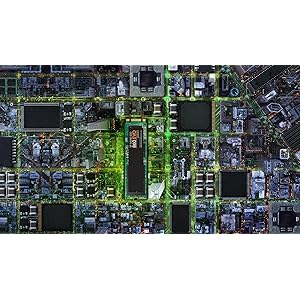
🚀 Upgrade your workflow with the SSD that means business — speed, space, and security in one sleek package.
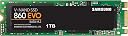
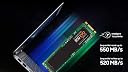
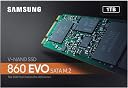
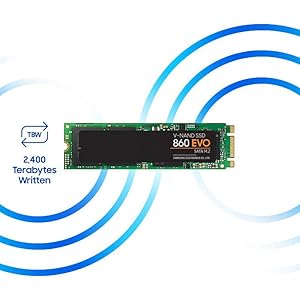
The Samsung 860 EVO 1TB M.2 SATA SSD leverages advanced V-NAND technology to deliver consistent high-speed performance up to 550MB/s read and 520MB/s write. Designed for professionals and power users, it offers robust 1TB storage, AES 256-bit hardware encryption, and exceptional endurance with a 5-year warranty, making it the ultimate internal drive for laptops and PCs demanding reliability and speed.


| Additional Features | Portable |
| Asin | B07822Z77M |
| Best Sellers Rank | #393 in Internal Solid State Drives |
| Brand | Samsung |
| Built In Media | M.2 SATA (6Gb/s) SSD & User Manual (All Other Cables, Screws, Brackets Not Included). |
| Cache Memory Installed Size | 1 |
| Color | Black |
| Compatible Devices | Laptop |
| Connectivity Technology | SATA |
| Customer Reviews | 4.8 4.8 out of 5 stars (6,098) 4.8 out of 5 stars |
| Digital Storage Capacity | 1 TB |
| Enclosure Material | 3D Nand |
| Form Factor | M.2 2280 |
| Global Trade Identification Number | 00887276246710 |
| Hard Disk Description | Solid State Hard Drive |
| Hard Disk Form Factor | 2280 inches |
| Hard Disk Interface | SATA 6 GB/s |
| Hard Disk Rotational Speed | 1 rpm |
| Hard Drive Size | 1 TB |
| Hardware Connectivity | SATA 6.0 Gb/s |
| Hardware Platform | PC, Mac |
| Installation Type | Internal Hard Drive |
| Item Dimensions L X W X Thickness | 3.15"L x 0.87"W x 0.09"Th |
| Item Type Name | Samsung 860 EVO 1TB M.2 SATA Internal SSD (MZ-N6E1T0BW) |
| Item Weight | 2.88 ounces |
| Manufacturer | Samsung Electronics DAV |
| Media Speed | 520 megabits_per_second |
| Mfr Part Number | MZ-N6E1T0BW |
| Model Name | 860 EVO |
| Model Number | MZ-N6E1T0BW |
| Number Of Items | 1 |
| Read Speed | 550 megabytes_per_second |
| Specific Uses For Product | personal, gaming, business |
| Upc | 887276246710 |
| Warranty Description | 5 Year |
User
Samsung 860 EVO 1Tb is awesome
Recently ordered the Samsung 860 1TB M.2 SSD. The seller (IPC-Store) promptly shipped the order with more than enough air pillows within the box to protect the drive from any rough handling. They even made sure it was placed in the middle of the air pillows, not to the side or bottom, and it arrived that way. So the person that boxed my SSD did so with a very purposeful and careful packaging. Thank you. For the product, the Samsung 860 is a five star product. I had much reservations on upgrading my HP x360 laptop that originally came with a 512GB SSD. It is several years old and came with the earlier generation B+M SATA3 interface, not the newer PCIe SATA6. The B+M interface has two slots, not one. HP made these with a Samsung 512Gb SSD, and that was why I really wanted to pay just a bit more for another 1Tb Samsung drive due to the absolute stunning Samsung migration software that really works well when using a Samsung target drive (migrating your old SSD drive to a Samsung SSD drive). Even though the 860 just came out in January '18 and is a SATA6 (which is backward compatible to SATA3), it was a perfect match to replaced the older SATA3 SSD. Much faster writes and reads as well as almost a 10 fold write capability before wear-out. I also ordered a USB-3 enclosure (making sure it was compatible to the old B+M interface) to house the new SSD while I cloned the original drive. I fired up the laptop with the old drive still in place and connected the USB enclosure with the new SSD inside it and connected it to the older USB2 port. I downloaded the Samsung migration software first (not Samsung Magician, just the migration software for SSDs) and made sure all stand-alone programs were closed. There will be open processes no mater what, but that is ok. just make sure all programs like Word are closed and I also disabled Norton. Did not kill it off, just disabled it until restart because the old USB2 was going to take 10 hours to clone. Then I executed the Samsung migration software and it auto detected both the old SSD in the M.2 slot and the new SSD in the USB connected enclosure. The migration software is extremely simple. It warns you any data on the new drive will be lost (I did not care since this was a new drive and I did not even check to see if it was formatted. You basically just hit enter and off it goes. Ten hours later and the drive was cloned. A USB3.1 will be much faster. Simply turned off the laptop, disconnected the battery, and swap drives. The new cloned SSD fired up properly and my HP laptop never missed a beat with the new 1Tb SSD. The laptop will most likely go to bios on restart due to disconnecting the battery. Just continue to reboot by hitting the continue to normal boot and the laptop will restart again and come up normal. Everything was the same. No pain of reinstall. Just my old machine back exactly as before but with an extra 500Gb of extra storage. So, great handling by the seller and great performance by the new Samsung 860 EVO SSD. And to add to the story, I am using the old 512Gb SSD in the new USB enclosure (with a cable so you do not block other ports) and I now have an external SSD drive. I hope your story will be as successful.
User
Buy it. Just do it.
Wow. I don't know why I waited so long to do this, I've known my computer had an M.2 slot for a while now, and finally took the plunge and bought this Samsung 860 Evo SSD. I should have done this as soon as I bought the computer, lol.For reference, the laptop that I installed this in is an Acer Aspire R5-571t. If your laptop will support the newer Samsung SSD (970 right now) then maybe buy it. I bought this one in particular for compatibility with my Acer motherboard. This laptop won't run the newer SSD but it will run this one. It's definitely worth doing. It was very easy to install, but remember to buy the screw. Samsung doesn't provide one with the drive, and this laptop doesn't come with a screw, either, although it does have the riser. It took about two hours to clone a 1TB SATA drive over to the new Samsung SSD, using Samsung Migration software.The speed improvements are just phenomenal. Even on fast boot, the original hard drive took a long time to boot. Now it boots very fast, just seconds, apps and programs open almost immediately, and downloads are even faster. The battery life improvements are very noteworthy, as well. The battery never lasted longer than 4 hours with the original hard drive, now I can get over 6 hours or more even watching videos. This is exactly what this laptop needed, it's just about perfect now.Here's a quick tip:Download Samsung Magician.As long as your SSD shows up on Samsung Magician software, and it says it's compatible with your system, you're good to use Samsung Migration to clone your old drive. Even if the new SSD doesn't show up in Windows file explorer. On my laptop, I could find the drive in the disk management menu and the BIOS, but not file explorer, until everything got cloned over to the new SSD. Now it shows up just fine.
User
Easy to clone with a lot of software and M.2's rock
Short version The 1 TB Samsung EVO in RAPID mode is the way to go . Use Samsungs data migration and magician after the cloning is done , make sure to get an enclosure . I bought Aluminum M.2 (B Key) to USB 3.1 Type-C M.2 SSD Enclosure Portable External Solid State Drive Enclosure (Black) Hope the rest helpsFor the storage and price made this a great buy. I had 2 of the 500gb,s at around 100$ I was bummed because i missed the 119$ sale on the 1TB but it came back as 127$ so i jumped on that and returned the 500gb .I used Aluminum M.2 NGFF(B Key) to USB 3.1 Type-C M.2 SSD Enclosure Portable External Solid State Drive Enclosure (Black) to clone this from the OEM 256GB HDD and The 1rst time on my 500gb it went well with Macrium free cloning software but the other 2 times it would not let me expand the C: Drive so i had a un allocated 250 gb on the 500gb'sSo I decided to use Samsung's data migration and it worked almost perfect . The only complaints are that in the recovery area if you hold shift and then click restart you get a sub menu as to where you can trouble shoot , use command prompt etc, Well this only provided 3 out of say 7 to 8 options . I have no idea what happened . But the system works fine and i know how to create by own recovery partition using EASYBCD 2.3 also free only uses about 4gb but they say to partition 6 i partitioned 5 . I also went right to system restore and made back up's to avoid hasslesSo Now I have a NEW 9/18 production date Asus Q536FD which I love , 4k ,touch screen , back lit keyboard , it came with 256gb ssd and 2tb 5400 spinning drive so i swapped to 1TB Samsung M.2 ssd and 500gb Samsung 2.5" ssd for extra storage (like ill need it lol ) But the nice thing about the Samsung 860 evo m.2 is that on Samsung Magician you can turn on RAPID mode and i was getting double to almost triple the speed advertised of 550mbps and receiving 980/860 I was impressed and i though it was a mistake but i also tried the 970 evo nvme and with that only got 1200/1000 and transfers and windows downloads are only about 1 second apart . Plus this only gets up to 112 degrees F (well i have not tried gaming but heavy workloads etc )where as the nvme ave. 148 F too hot for me and gaming over 160 F the packing even states gets up to 70 C which i did not see when i bought it so instead of overheating my new laptop i switched to the 860 evo m.2 and have no regrets now that i finally have the 1TB drive as this will do 2400TB written where as the 500gb or smaller only write 500 TB or less the less the drive the less it lasts . Didn't find that out untill i saw quite a few you tube videos and read a lot of the Amazon reviews .
User
Exactly As Advertised
I needed to upgrade my Dell Inspiron 7386 from 256 Gigs to 500 Gigs and wasn't sure exactly which solution to get. After reading a number of reviews and watching videos (on you know where!) I decided on the Samsung 860 EVO SSD 500GB - M.2 SATA Internal Solid State Drive with V-NAND Technology. It was a crapshoot as I had never changed out an SSD before and this would be new territory for me. After watching some videos I decided I would give it a go. After taking off the back of the laptop I immediately noticed that the installed 256 SSD was about 1/3rd the size of the Samsung. I was of course very concerned as it looked like the Samsung wouldn't fit. Then I discovered that the area the SSD could fit into was actually larger and the screw that held down the SSD was adjustable and able to accomidate the larger, longer, Samsung board. Once I figured out it was a breeze. The SSD fit right in and and I screwed it down.With that done and the back of the laptop secured I booted up with a new copy of Windows 10 from the USB drive. It took about an hour with all the updates and driver installs from Dell and Intel, but it came out great. When I checked the storage on the laptop it read 465 Gigs ... a long haul from the 180 Gigs I had before. The machine is much faster and responds far better after the new install. I had read that the Samsung SSDs were in fact the best ones on the market for my application. I'll see over time if performance wanes or deminishes ... but for right now its humming along great. As of right now ... 5 Stars!
User
Easy to Install (as in attach to the motherboard), but.....
How to clone SSD from HDD on a Dell i7559-2512BLK using a UEFI boot system keeping all Windows and OEM partitions in place. Other systems may vary.-Assuming you have an external backup drive or another drive to backup and/or temporarily move files to.-Have a minimum 1 GB USB stick to make a rescue boot device-Download the Macrium Reflect v7 Free Edition and research how to use it for image backups, cloning and making rescue media-Don’t bother with the Samsung Data Migration softwareHopefully this saves you the days I spent chasing info on the internet, over multiple attempts, to figure this out.First, to keep things simple, I went ahead and moved enough files off of the existing “OS” HDD to my external drive to have enough room to clone to the SSD. This meant that the megabytes of files on the HDD did not exceed the capacity of the SSD. I gave about 20% head room to make sure there would be no problems.Now this step saved me from losing everything in trying to get things to work and going too far in the wrong direction. Use Macrium to make a disk image backup of your existing HDD. This can really save you.Next, use Macrium to make a rescue USB. Do not skip this step. This is key.Now use Macrium to clone your HDD to the SSD, keeping all five of the HDD partitions in the same order on the SSD. To do this (it seems) you have to do some math to manually size the Primary partition. Macrium will only auto resize the last partition dragged over to fit. You select the partition, and there is a menu below that you go into, in order to manually set the size. Then drag over your other 2 partitions. If your math is off a bit and you have extra room, Macrium will let you know how much space is not allocated and you can adjust the Primary partition accordingly.After the clone is finished and you restart, the computer will still boot from the HDD and not the SSD. To save you hours or even days of frustration, you restart with the USB stick attached to the computer, and repeatedly press F12. When the boot option menu comes up, you should see the option to boot from both the SSD and the USB stick. If the SSD isn’t there then you have a problem, but if the SSD is showing, go ahead and chose to BOOT FROM THE USB STICK. This will fire up the Macrium rescue software and you can use it to pick which disk to boot Windows from, and choose the SSD. Now when you restart, Windows will ask you which version of Windows you want to boot from. I chose the lower volume number, and sure enough, that booted from the SSD. In file explorer, there will be a Windows icon next to the drive letter that is running Windows. Using the disk capacity to verify I had the correct volume picked, I restarted again. Once again Windows asked which volume I wanted to run Windows from, and I went through the option make the proper volume the default. If you blow up your HDD to remove the Windows partitions, then it won’t ask you which volume you want to run Windows from any more.After you have things running well (doing a few startups and shut downs to make sure) you can start moving files from the external back to the HDD, or rework the HDD to remove the Windows related partitions and then start moving your files.
User
Great product
Worked flawlessly. Great purchase.
User
Saved me lots of space on my laptop.
I added this to my Acer gaming laptop to increase storage capacity. I had space in my laptop to use this one and my old one, so now I use both for maximum storage. At first I was worried that because I had a gaming laptop, this SSD would be slower than my old SSD. However, thus far, they seem to work just as fast.The installation made me super nervous due to just how thin this thing is, but I suppose that might be something that can't be helped due to the nature of laptops.My dad helped me install it, I've no idea how the hell I would have done it without him, as it doesn't come with proper instructions on how to install it. As such, I wouldn't recommend this to anyone trying to increase their storage space if you don't have a lot of computer experience or a buddy who can install it for you.
User
Perfect SSD to have as external hard drive. Durable with great write/read speed.
I've been looking portable small SSD external hard drive. First I've been thinking about Samsung T5 but 860 EVO catch my attention as its price was 90 $ lower compare to T5. For extra 22 $ I get external case for it and I have now excellent external hard drive. There is newest version of EVO 860 2TB SATA - EVO 970 NVMe 2TB (EVO 960 doesn't come in capacity of 2TB) but for external hard drive there is no point to spend additionally 180 $ (unless you want to use as internal hard drive for you desktop (or new laptop).Transfer speed read and write is similar to T5 and if you using most of time to connect through USB 3.0 this is the way to go. I wanted to have external SSD as there is no movable parts and theirs life time is much longer.EVO 860 itself is really small 3,15 x 0,87 x 0,09 in.I use NGFF M.2 SSD case for it which has size 4,61 x 1,57 x 0,31 in - versus size of T5 3 x 2,3 x 0,4 in. As you can see difference is just the length but case with EVO 860 is thinner. It fit in the pocket without any problem to carry around. You can format as you need, to use with Windows or macOS.Recommend to buy this and make as external portable hard drive except carry with you many pendrives.
User
Excelente SSD M.2 Sata
De las mejores marcas para SSDs, ningún problema de rendimiento.
User
Süper hızlı
Acer aspire v-17 black edition için ssd güncellemesinde kullandım. Son derece başarılı. Satıcı Kamil Bey çok ilgili. Teşekkürler.
User
Great product
Great product with the advertised read and write speed.. no issues till date been using it for more than 4 months. Temps are in control and the software to manage it is not bad. Worth it if there is a good discount.
User
fast delivery
good Products not any issueand fast delivery
User
Worked well, easy to install
I upgrade my Asus Vivobook Pro with this SSD. Note that it's a SATA connector (as compared to NVMe which is newer), and it's the M2 size variant (which is like a long thin card).Installation was straightforward, as long as you have some Youtube videos to follow on how to disassemble your laptop. Caution on which side to face-up when inserting the SATA M2 SSD - you don't want to damage the connector pins.It runs fast and it has been 2 weeks since installation.
Trustpilot
2 weeks ago
1 month ago