🎨 Elevate your art game with pro precision and wireless freedom — don’t get left behind!
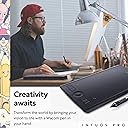
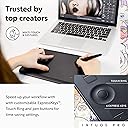
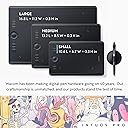
The Wacom Intuos Pro Small is a professional-grade, compact drawing tablet featuring a 10.6" x 6.7" active area, equipped with the battery-free Pro Pen 2 offering 8192 pressure sensitivity levels and tilt recognition. It supports both Bluetooth wireless and USB-C wired connections, includes 6 customizable ExpressKeys, a Touch Ring, and multi-touch gestures for intuitive control. Compatible with Mac and Windows, it’s crafted from premium materials for durability and designed to enhance productivity for creative professionals on the go.


| ASIN | B07PPQH867 |
| Batteries | 1 Lithium Polymer batteries required. (included) |
| Best Sellers Rank | #161 in Computer Graphics Tablets |
| Brand | Wacom |
| Color | Black |
| Customer Reviews | 4.6 4.6 out of 5 stars (4,031) |
| Date First Available | May 9, 2019 |
| Hardware Platform | Mac, PC |
| Item Dimensions LxWxH | 6.7 x 10.6 x 0.1 inches |
| Item Weight | 15.8 ounces |
| Item model number | PTH460K0A |
| Manufacturer | Wacom Technology Corporation |
| Max Screen Resolution | 1920 x 1080 Pixels |
| Operating System | Windows |
| Product Dimensions | 6.7 x 10.6 x 0.1 inches |
| Screen Resolution | 1920x1080 |
| Series | Intuos Pro |
| Standing screen display size | 9 Inches |
G**N
Great product and great use.
So combine this with the carry case for the extra protection. It's pretty comfortable, and was easy to set up, didn't have to do much to get started on drawing. The sensitivity is pretty good, and I would recommend a microfibre cloth to clean the surface (a glasses cleaning cloth works great btw) It comes with plenty of nibs for the pen, and the drawing ability is great, you can use your finger, or the provided pen. It's pretty good! This is nice if you want something a bit smaller than your keyboard, but not overly small, but it's not too big either.
N**H
Industry Standard, Worth the Price
After poring over reviews for less expensive tablets I finally decided to purchase the more expensive Intuos Pro (medium size). While pricey, it does not disappoint. It suits my needs perfectly as a 3d artist who suffers from wrist and joint pain. I moved from a mouse to a trackball years ago, and while it helped, it did not alleviate the problem. The pen-tablet combo is even better, for while some movements remain repetitive, many are mitigated through the multiple ways of accomplishing similar tasks. I still pull out the trackball when doing simple things like typing/navigating documents etc., but am using the stylus more-and-more for a variety of applications as I become used to it. PROS: ● Intuitive settings interface ● The included stylus is easy on the hands (mine are large, but not huge: long thin fingers) ● Bluetooth or Type C connection for wireless or wired use (nice when it works) ● Mid-size tablet is a perfect size for everything I do (the large would be too much for my tasks) ● Pen comes with several replacement nibs ● Tablet surface is sensitive and feels natural to write on for me ● Has a user friendly "Touch" feature that turns it into a giant track-pad with programmable hand gestures (works really well for me) ● "Touch" feature can be disabled with the flick of a switch ● On-tablet programmable buttons, as well as pop-up menus for all or select apps ● The option to replace the standard (medium) drawing surface (smooth, medium, rough) CONS: ● Sometimes the driver stops working (so far not often). Pulling its USB and then plugging it back in takes care of this, and when that fails a reboot is necessary--annoying when in the middle of a work-flow. EDIT: The bluetooth has consistently broken the tablet drivers--so much so that I stopped using the wireless option. It would be a great feature, if it worked without having to restart the system constantly. My bluetooth adapter works without a hitch with my other devices, so the problem seems to be Wacom's drivers. When plugged in (not using bluetooth) the drivers are much more consistent. Apparently Wacom drivers seem to be an issue with other reviewers as well--hopefully these issues are addressed through updates. ● The side buttons on the new model are stiff, requiring a bit of pressure to toggle/keep toggled. Repetitive tasks are then more difficult, especially when hand fatigue sets in. As a result I find myself using the keyboard for shortcuts with my left hand while working the stylus with my right. Wacom would do well to lighten the mechanical switch, or provide the option for user defined pressure settings. ● The "Touch" feature can only be disabled through the mechanical side switch. Some applications do not distinguish well between pen and hand input, making the touch feature undesirable when a stylus is necessary. It is a bit annoying to have to physically toggle a switch when one is using keyboard shortcuts, pop-up menus, etc. Wacom would do well to also include a programmable shortcut etc. for touch on/off (I believe the older version of the Intuos had this feature, but without the mechanical switch--which I do like). ● The included medium grade drawing surface seems to be wearing out my nibs prematurely. If I end up spending a lot on extra nibs I will take the plunge and replace the surface with its smooth variant, but would rather save the money. For now I am carefully refining my used nibs with 1000 grit sandpaper, which works well-enough. In spite of these annoyances, I am satisfied with this tablet. Hopefully the next permutation by Wacom will be even better (especially driver stability).
R**K
Great tablet, works as well as my iPad Pro!
I want to preface this review by stating that I have never used anything like an actual Cintiq or similar. The closest comparison is my iPad Pro, which I had been using to creating fantasy art digital paintings for a good two years as of this review. My switch to a Wacom Intuous Pro was spurred by the fact that I'm now doing more complex illustrations and I really need the power of desktop Photoshop. Not iPad Photoshop, but he real deal app! I love Procreate, but Photoshop has the true power that I need when working on my drawings. Yes, you can draw and compose and paint all day long on the iPad Pro with Procreate, but I needed more processing power and, quite frankly, more layers! I previously had a Wacom Intuous 3, like probably 12 years ago or so. I used it back then, but never got into digital painting like I have in the last two years. I have no problems going from using the Apple Pencil which draws directly on the screen vs. using the Wacom Pen 2, down on my desk with myself staring at the screen. In fact, I think there is a slight advantage for me personally because now I no longer have a tendency to hunch over the iPad. It just seems to work for me just fine. I like to use my Wacom Intuous Pro M in tandem with the Apple Magic TrackPad 2. There are times when I connect via Bluetooth and my Wacom has a lag. I find that if I turn off the trackpad, then turn it back on, the Wacom pen and trackpad work without disrupting the either. I do find that I need to turn off my Magic Mouse entirely however. Yes, I like to work with both the Apple trackpad and mouse, I think it keeps my wrists from going bad and it just keeps my brain guessing, I suppose. You know, using multiple inputs for moving the cursor around and all. All in all, I would recommend this to anyone, the Wacom Intuos Pro M. I had one of the smaller Intuos, and it was fine, but the Pro has much more sensitivity, thanks to the Wacom Pen 2. The nib does wear down faster than I remember, but it doesn't really bother me. I think the pressure can be adjusted, but I really haven't messed with it. Should beginners use this? I think for the level of control, levels of pressure, it might take away the frustration with using a cheaper tablet. It's like when I was learning to paint traditionally: when I went from student grade paints and brushes to pro grade materials, there really was a difference in how I could manipulate the paints and use a brush that actually held its point. I imagine working on a Cintiq with Photoshop would be just as awesome or maybe even more. But, I will say that the level of control I feel I have using the Intuos Pro M in Photoshop to draw, sketch, paint is so spot-on, that using the Intuos Pro M will save me hundreds of dollars when compared to a Cintiq.
C**N
bought this for my boyfriend and he loved it for his work! was very useful and the bluetooth function is especially amazing because there’s no need for cables!
R**O
Atualmente uso Windows 10 e a mesa funciona perfeitamente, mesmo sem atualizar os drivers. Recomendo desativar a função "Windows Ink", tanto nas opções da mesa quanto nas do próprio Windows (para estas últimas, procure no Painel de controle). Sinceramente não sei qual é a função desse Windows Inks: ela é completamente inútil para o desenho, nada afeta nas funções da caneta e da mesa, além de ser irritante.
T**A
It's a Wacom, what else is there to say? It's a great little tablet. I've never had a Wacom tablet that doesn't do a good job, and this one continues the trend. A invaluable asset to anyone into digital art. It's easy to hook up with only needing one USB-C cable, has a wireless Bluetooth option (tablet has a little side button to turn off the tablet when you don't need it on), and the two-button stylus is as sensitive as it needs to be. The driver is straightforward and easy to understand and use, while customizing the tablet to to what you need it to with what programs you need it to work with. You can set it up for different settings for different programs, or have one sweeping setting for everything, though if you use lots of different programs you will likely need different profiles for them, as many art programs have different keybinds to use their tools. The tablet itself seems a little fragile, as one may imagine, so dedicate some space on a shelf for it so you don't need to place anything on top of it. The ring and hotkeys are placed on the side, which I find to be perfect (not sure why the newest models have them on the top, I think that is a much clumsier design). The whole thing is a slick black with a fine material finish, making the product look sleek and compact. This tablet is easy to carry and is lightweight. You can set this tablet to accommodate either a left or right handed person. Not much I find at fault here, though there is one thing that perhaps should be mentioned: it does feel the nibs are less durable on this pen stylus then on other models. Don't know if the tablet finish just grinds them down faster, or I just have a heaver hand these days, but the nibs don't last that long. Good thing the pen holder comes with a bunch of 'em stored inside! Final thoughts: Great tablet. Would recommend. While there are a few alternatives to Wacom these days, and they are indeed viable options, I would still say get a Wacom to those who can afford it. The whole package just works.
S**A
The overall product is amazing and if you're into digital art of any sort it's definitely a must buy if you feel like continuing professionally....The packaging is great except for some stray marks on the drawing surface due to glue residue from the plastic wrapping I guess which isn't a big deal but hampers the unboxing experience a bit....
J**.
A Mesa digitalizadora Wacom é de longe a melhor opção para quem deseja precisão e durabilidade. O produto é construido de ótimo material e tem excelente acabamento, e os drivers instalam automaticamente e é tudo intuitivo. Tem muitas opções para personalizações mais finas para cada programa, eu uso diariamente os produtos da Adobe, como Illustrator e Photoshop e a resposta é extremamente satisfatória. Eu tinha uma Wacom Bamboo e durou uns 8 anos, até não responder mais, porem eu creio se tratar de um problema de software/driver, porque o hardware ainda está com uma ótima aparencia. Espero que esta dure muito mais pois convertendo em valores daria para comprar umas oito mesas do modelo equivalente a Wacom Bamboo. A diferença entre as mesas do modelo que eu tinha para este é sem dúvida o tamanho e a sensibilidade do toque e da inclinação da caneta, sem falar das facilidades como Bluetouch utilização sem fio, apesar de eu ainda não ter utilizado pois preciso de um tempo maior para testar todas as fiuncionabilidades da mesa. Caso você quiser manter conectada com o fio a entrada é dos dois lados da mesa, facilitando a sua montagem independente de onde estiver a sua CPU ou Note. No começo achei muito grande a mesa PTH660M, porem com o passar dos dias eu me acostumei, pois uso dois monitores 4k e com a resolução alta, porem ela dá conta tranquilamente na sua área de espaço. Outra questão é que estes modelos novos não vem com os anéis de cores para personalizar a caneta e nem sei se vende separado, na dúvida sobre o produto não ter vindo com os anéis e nem com o mostruário de texturas eu liguei para o suporte da Wacom e fui muito bem atendido e foi tirado todas as duvidas. Nota 10!
Trustpilot
5 days ago
1 week ago