Buy anything from 5,000+ international stores. One checkout price. No surprise fees. Join 2M+ shoppers on Desertcart.
Desertcart purchases this item on your behalf and handles shipping, customs, and support to Panama.
🚀 Upgrade Your Connection, Upgrade Your Life
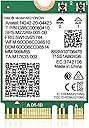
The Intel AX210 NGW WiFi 6E Wireless Card delivers tri-band speeds up to 5400Mbps and Bluetooth 5.3 support, designed for laptops with M.2 NGFF slots running Windows 10/11. It offers stable, low-latency wireless performance, easy installation, and enhanced power efficiency, making it the ultimate upgrade for professionals seeking cutting-edge connectivity.


| ASIN | B09WQSNMCT |
| Best Sellers Rank | #3 in Internal Computer Networking Cards |
| Brand | NICGIGA |
| Color | multicolor |
| Compatible Devices | Laptop |
| Compatible Operating System Family | Windows |
| Customer Reviews | 4.6 out of 5 stars 2,041 Reviews |
| Data Link Protocol | Bluetooth |
| Data Transfer Rate | 6 GHz |
| Hardware Interface | 802.11 ac/b/g/n, Bluetooth 5 |
| Item Dimensions L x W x H | 1.18"L x 0.87"W x 0.08"H |
| Item Weight | 37 Grams |
| Manufacturer | NICGIGA |
| Mfr Part Number | NIC-AX210 |
| Minimum Required Operating System Version | Windows 10 |
| Model Number | NIC-AX210 |
| Product Dimensions | 1.18"L x 0.87"W x 0.08"H |
| UPC | 756166630611 |
| Unit Count | 1.0 Count |
| Warranty Description | 1 Year |
T**2
Replaced TP-Link TBE9300 (MediaTek) with Intel BE200 — fixed latency, Bluetooth, and more
After issues with a TP-Link TBE9300 (MediaTek WiFi 7 adapter, which I am returning), I switched to an Intel BE200, and the difference was immediate. Instead of buying another full PCIe card, I reused my existing Intel AX210 PCIe adapter and simply swapped in the BE200 M.2 module. That made the upgrade inexpensive and straightforward. Many desktop WiFi PCIe cards are just adapters for an M.2 (E-key) wireless module, so you may not need to replace the entire card. In my case, I reused the PCIe adapter from my Intel AX210 and replaced only the module with the BE200. This worked perfectly and saved me from buying another full adapter. Before upgrading, make sure your PCIe adapter uses an M.2 E-key module (not soldered), has antenna leads (U.FL / IPEX connectors), and that your system supports the card. The BE200 requires Windows 11. For laptops, make sure you also have an M.2 E-key slot and are running Windows 11. Test setup: Intel i9-12900K desktop, Windows 11, Ubiquiti WiFi 6E / WiFi 7 access point, AT&T multi-gig fiber, approximately 15–20 feet from the AP through a hallway, with an external elevated antenna. Latency and stability were a major improvement. At idle, latency averaged around 2 ms and was very stable. Under load, latency averaged around 7 ms with occasional spikes up to about 113 ms, which is expected on high-speed WiFi without traffic shaping. There was no packet loss. Latency is predictable and stable when the connection is not saturated. Bluetooth stability was one of the biggest differences. With the previous MediaTek-based adapter, I experienced frequent disconnects and unstable behavior using Windows Phone Link. With the Intel BE200, Bluetooth has been completely stable and Phone Link works reliably with no disconnect issues. This alone made the upgrade worthwhile. The TP-Link TBE9300 (MediaTek) showed idle latency spikes, occasional packet loss, unstable Bluetooth behavior, and limited driver support. The Intel BE200 resolved all of these issues. Driver support is also much better. Intel drivers installed cleanly and have been stable. On Linux, current kernels already include support for Intel wireless hardware, so there is no need for third-party drivers or manual workarounds. If you are upgrading to WiFi 7, you may not need a new PCIe card. If your adapter supports M.2 modules, you can simply swap the module. The Intel BE200 provides stable performance, reliable Bluetooth, predictable latency, and strong throughput. In the same system and network environment, the Intel BE200 behaved consistently and predictably, while the MediaTek-based card did not. 5/5 — highly recommended.
E**D
Nice upgrade to keep my laptop alive
I recently switched to a new Internet provider and got a faster connection and the wifi card on my laptop wasn't able to utilize as much of the speed, with this new card, my laptop is able to connect at a far faster speed and I also appreciate the upgrade I got with Bluetooth as well, it was a cheap and easy way to upgrade my laptop and keep it running, my laptop runs on Linux and it detected it no problem.
S**E
Works perfectly to upgrade a 1st gen (and likely 2nd gen) Del XPS 8930 PC!
There is a LOT to know and consider when upgrading your factory Wi-Fi / Bluetooth card in a Dell XPS 8930! This card does the job. Working perfectly in my 1st generation (bought March 2018) Dell XPS 8930 that has Windows 11 Pro running. The Intel "BE200" Wi-Fi 7/BT 5.4 card that you might find being mentioned as a replacement does NOT work in either generation of the XPS 8930, due to the processor type not being generation 12, even though the later generation XPS 8930 might have the "E" key slot M.2 Wi-Fi slot and the card physically would fit. Some things to know: • There are TWO generations of Dell XPS 8930 PCs, early and later in that year, which have different processor genreations and probably different Wi-Fi Card slot keying. The early XPS 8930 (like mine) have the Intel 8th or 9th generation CPU. The later generation have the Intel 10th or 11th generation CPU. None of these will work for the BE200 Wi-Fi/BT card - which HAS to have an Intel 12th generation CPU or later (won't work with AMD CPUs at all), since that card relies on things inside that 12th gen Intel processor chip. By contrast this wonderful AX210 NGW card works just fine on generation 7 - 11 Intel processors. To find your processor generation, in Windows settings to go system-> about, which shows your processor model number. Google that number and you will find an Intel link with the CPU's information, which will give the generation. SIDE NOTE: the BE200 Wi-Fi 7/ BT 5.4 card MIGHT work if you have a Dell XPS 8940 and it is running Windows 11. Sounds like that later model of XPS had both a generation 12 processor or later AND a key E (see below) WiFi card slot. • A related ^^^ issue is the Wi-Fi / BT card M.2 2230 socket - there TWO TYPES - key A and key E, depending on where notches are on the contact end. So the official name would be like "M.2 2230 key A socket". This wonderful AX210 card has notches for both "key A" and "key E". Will fit in either. The Intel BE200 Wi-Fi 7 card, that we already know WONT work in the XPS 8930 due to processor ^^^ has a key E slot only. Turns out the early generations of the XPS 8930 have key A slots, like mine does, while later that year the later generations MAY (I can't confirm but from the reading seems to be the case) key E slots. This AX210NGW card will work in either. Unfortunately that BE200 card would fit the key E slot, but then not work due to the processor not being at least gen 12 (and the OS possibly not being Win11, see next). • This AX210 card works fine with either Windows 10 (likely the factor install on your XPS 8930) or Windows 11. The BE200, which doesn't work in the XPS 8930 for reasons above, also requires windows 11. The drivers for this AX210NGW are built into windows - sort of. What installs are drivers from 2019 (Wi-Fi) and 2021 (Bluetooth) which work, but there are later more up-to-date drivers. Best way to get those is to use IObit's Driver Booster (which I have used for years and HIGHLY recommend - only offers/installs Microsoft Hardware labs certified drivers, no junk). That will update both (and probably offer a bunch of newer drivers for stuff on you PC you didn't know were available that don't come through Windows Update!) to 2026 Intel driver versions. • Be sure to run MS Windows update, too. An Intel extension gets installed when it discovered the new card. Then reboot. • There is a reason your factory "Killer" wired Ethernet and WiFi/Bluetooth cards got so flaky all of a sudden if you upgraded the factory Windows 10 to Windows 11 at some point. Intel bought the "Killer Networking Products" company years back - then killed it. :( Eventually stopped selling the products and updating the drivers. Which is one reason things got sketchy with Windows 11. With this AX210NGW card you have fully supported Intel drivers on Windows 11. • Be sure to note which antenna connector labeled on your old Killer Wi-Fi card (Aux or Main) the BLACK wire went to. On mine it was the outer "Aux" antenna connector, which shows a (matching) black dot. Well you put that black wire back into the same Aux-labeled antenna port on the new card, but it will show WHITE wire (a circle) on the card! Ignore that. The text labeling is what you want to follow. • Be aware that the "struggle is real" on getting the two antenna wires plugged back into the new card after removing from the old card. To be able to get the Wi-Fi cards in and out easily I had to remove the Nvidia 1070Ti graphics card in mine, that sits right next to the Wi-Fi card. Then it gets fun with the antennas. :( The super-small coax connectors on the Wi-Fi/BT AX210 board push into mating mini coax sockets on the end of the antenna wires. Which are incredibly small! A magnifier helps here as does external light. Having an assistant for both REALLY helps, as does having a pair of tweezer-nose electronics pliers, like the Xuron Tweezer Nose 450 here on Amazon. Once the antenna wire's connector is over the card connector, gently press down with the tips of your tweezer pliers. When both wires are on use those pliers to re-install the plastic hold-down piece over the wires and screw in the screw. • Once the card and antenna wires are re-mounted, back in with the graphics card, button up the PC, cables back on, and fire it up! Check device manager to make sure this new AX210 card shows up for both Wi-Fi and Bluetooth. Then run Driver Booster to update those drivers the OS installed. WORKS GREAT! The card found my 6 Ghz Wi-Fi network network (although at Wi-Fi 6E protocol, which is the best this card can do). Had to re-pair the Bluetooth mouse, which I was expecting, after removing the old entry for the mouse in Windows Settings->Bluetooth. BOTTOM LINE: This is an EXCELLENT upgrade card for either generation of the XPS 8930. Just be prepared for some time spent getting the antenna wires plugged back in!
H**W
Upgrading My 2014 Dell All-in-One to Wi-Fi 6E with AX210NGW
I purchased the Intel Wi-Fi card AX210NGW to upgrade my 2014 Dell All-in-One Desktop Inspire 23 5348. Previously, I upgraded the system by replacing the HDD with an SSD and increasing the memory to 16GB, which made it reasonably usable. While looking for one final upgrade, I noticed that the built-in Wi-Fi card was still Wi-Fi 5, an older standard. I hoped that switching to Wi-Fi 6E would improve my network speed. Before replacing the Wi-Fi card, I read that it’s best to download drivers from Intel or Dell’s website to avoid losing connectivity, so I downloaded them in advance. The AX210NGW was compatible, so I removed the original Wi-Fi card and disconnected the antenna cables. I inserted the new Wi-Fi 6E AX210NGW into the connector. Although the shape was slightly different, it fit without any issues. However, I ran into a problem with the antenna cables. I tried to reconnect the white and black cables correctly, but the white one didn’t fit properly. As a temporary solution, I taped it in place. Apparently, some Wi-Fi cards also require new antenna cables for full functionality. Even with the tape, the network is currently working and the card is recognized as Wi-Fi 6E, but the speed isn’t as high as I had expected. To fix this, I ordered a Wi-Fi 6E Antenna IPX MHF4 Tri-Band from Amazon to replace the antenna cables. I’m looking forward to seeing how much the speed improves once the new antennas are installed. One thing to note: my home network still uses Google Wifi, which is Wi-Fi 5. Therefore, even with the AX210NGW, I cannot achieve the full potential of Wi-Fi 6E. Once I successfully replace the antenna cables, I plan to upgrade my home Wi-Fi router to fully take advantage of Wi-Fi 6E. It’s not working perfectly, so I’m giving 3 stars, but this is not the fault of the product. Unfortunately, the cables were not compatible. Update: As of November 15th, 2025, I have installed a Wi-Fi 6E IPX MHF4 tri-band antenna on my PC, which is compatible with the AX210 NGW, and I now use a Nest Wifi Pro 6E at home. The PC is placed in the kitchen, about 20 feet away from the Nest Wifi Pro, so it doesn’t connect to the 6 GHz band. However, the speed is still more than sufficient. My internet speed test results are always between 300 and 600 Mbps. This PC is very old, but the internet connection is very stable, and I can watch YouTube and Netflix without any issues. This is a huge upgrade for a 2014 PC, and I’m really happy to report it! I definitely have to give it 5 stars.
P**Z
Easy swap that fixed an unstable MediaTek wifi card
I replaced the misbehaving MediaTek wifi card that came in my 2025 Asus ROG Zephyrus G14 GA403UI. This card (WiFi 6E Wireless Card Intel AX210 NGW Bluetooth 5.3 Tri-Band 5400Mbps) works perfectly and cost about $20. I downloaded the driver from the Intel website before I swapped this new card. The little kit that came with this new wifi card included two screws (which I didn't need because I just reused the old screws), a small screwdriver which was pretty low quality so I used some other cheap tiny screwdriver I has lying around), and the wifi card. I don't open laptops or upgrade computers very often so my skills are pretty weak. This is still a simple job that took less than an hour and careful slow pace. I did not disconnect the laptop battery before swapping the cards but I was careful to ground my fingers before touching stuff. Getting the old wifi card out and the new card installed was super easy. Note, I have no idea why the MediaTek wifi card that came with the laptop failed; it developed weird connectivity issues that disappeared when I turned the laptop sideways. When I swapped the wifi card, I double checked that the 2 antenna wires were perfectly connected. Weird failure. But the this cheap $20 Intel replacement and 1 hr or work saved me the hassle of dealing with a warranty issue. No issues at all with the new card...super stable connection. It may even be faster...but that could just be in my head.
R**B
This Card Jams in an old HP Pavilion 509-p0066 PC
I want to say installation was a breeze but It wasn't bad considering how tight my ATX case was. The hardest part was getting the screw in place. I also went from a single antenna card to this AX210 card. I unplugged my ethernet cable as I didn't want any questions on my data. I first tested it on my 2.4GHz network and saw speeds increase from 40Mb/s (old card) to about 110Mb/s (new card). Then I tested it on my 5GHz network and saw over 900Mb/s. My ethernet gets about 945Mb/s so the Wi-Fi speed has improved substantially. As for longevity, well I will have to wait and see.
P**I
Perfect replacement and upgrade for my laptop
Restored Bluetooth and WiFi to my laptop, and also upgraded to almost the latest standards. Much faster WiFi speeds my network if 6E anyways so it’s always maxed out. Great value for the money, and got it quickly. Has been very stable connections.
T**N
Nice Card - Works Well with an Acer E5-576-392H -- Highly Recommended!
I needed to replace the wifi card in my Acer E5-576-392H laptop. It was showing its age with the newer wifi technology (i.e. Wifi 6). I replaced the Original card, a Qualcomm QCNFA435 (KE11A0L001) with this card. My OS is Linux Mint 22.2 (Kernel 6.8.0.90) This card works extremely well with my Acer. On the average WIFI speed went from 238 to 439 download and from 25 to 37 upload. Tested Bluetooth with my BT speakers (worked well). Testing was done with the same wifi router. Note this wifi card DOES WORK with Linux Mint. I'm guessing with the other Linux distos. Plus, the Qualcomm QCNFA435 (KE11A0L001) is M2.30 card with A & E slots. I know this as I pulled the bottom cover off and look inside my laptop. I wanted to make sure this card would work with my Acer, so I asked Amazon's IA, Rufus this question: "will this work with acer e5-576-392h" Rufus's replied: ""The NICGIGA WiFi 6E AX210 Wireless Card may not be compatible with the Acer E5-576-392H. This card requires an M.2 slot with support for 802.11ac/b/g/n, and the Acer E5-576-392H uses a different WiFi module connector type. ------ Rufus was INCORRECT here. Just note also the Qualcomm QCNFA435 card is somewhat narrower than this WiFi 6E Wireless Card Intel AX210 NGW card, which is a full size M2.30 card. Hope his Helps!
B**N
Thanks
Thanks.
O**.
Solid stability boost for a great price
Easy and cheap upgrade. Installation was a breeze—just make sure to download the Windows 11 drivers before you swap the card. Once it was in, everything felt much snappier. The Bluetooth connection is rock solid now; no more drops with my headphones. While raw speeds didn't exactly increase (since that’s mostly on my ISP), the overall stability is night and day. Definitely a 5/5 fix for connection headaches.
K**S
WiFi 7, what's not to like
Upgraded my Asus ROG laptop from WiFi 6E to WiFi 7. I can now see it connected to all 3 frequencies simultaneously using the MLO function on Tp-link deco be65. Also able to verify download speeds directly from main unit.
C**E
Fonctionne sur pc hp laptop 17
Salut, je l'ai installé sur un pc HP LAPTOP 17-CP2031 NF carte rysem 3. 7000 série avec une antenne supplémentaire eMagTech Antenne Wi-FI Interne IPEX4 pour PC Compatible avec Intel Les Cartes AX210 AX200 NGFF M.2 Wi-FI 6 et elle fonctionne à merveille. Débit de 180 mo/s passé à 530 mo/s. Connexion Bluetooth très rapide. Beaucoup mieux que la carte d'origine. Télécharger les pilotes sur le site avant le changement de celle-ci. Je l'a conseille vivement.
S**S
Compatible and stable
Fully compatible with old card I had, that was based on some Mediatek chip (can't exactly remember which one it was). As with most of things when it comes to PC architecture, it was a matter of simply opening the computer and replacing the module. And it works. And it works pretty well! 10/10
Trustpilot
2 weeks ago
3 days ago